Set Up Your GFiber Wi-Fi 6 Router
Depending on your home setup, you'll either use a self-install kit or schedule a professional installation during signup:
- Self-install kit: We ship a kit to your door, or you can pick one up at select GFiber locations when you place your order.
- Professional installation: A technician installs your equipment for you.
Follow the steps below to self-install your GFiber Wi-Fi 6 Router.
Quick Setup Guide

To install your GFiber Wi-Fi 6 Router:
- Power on your Fiber Jack.
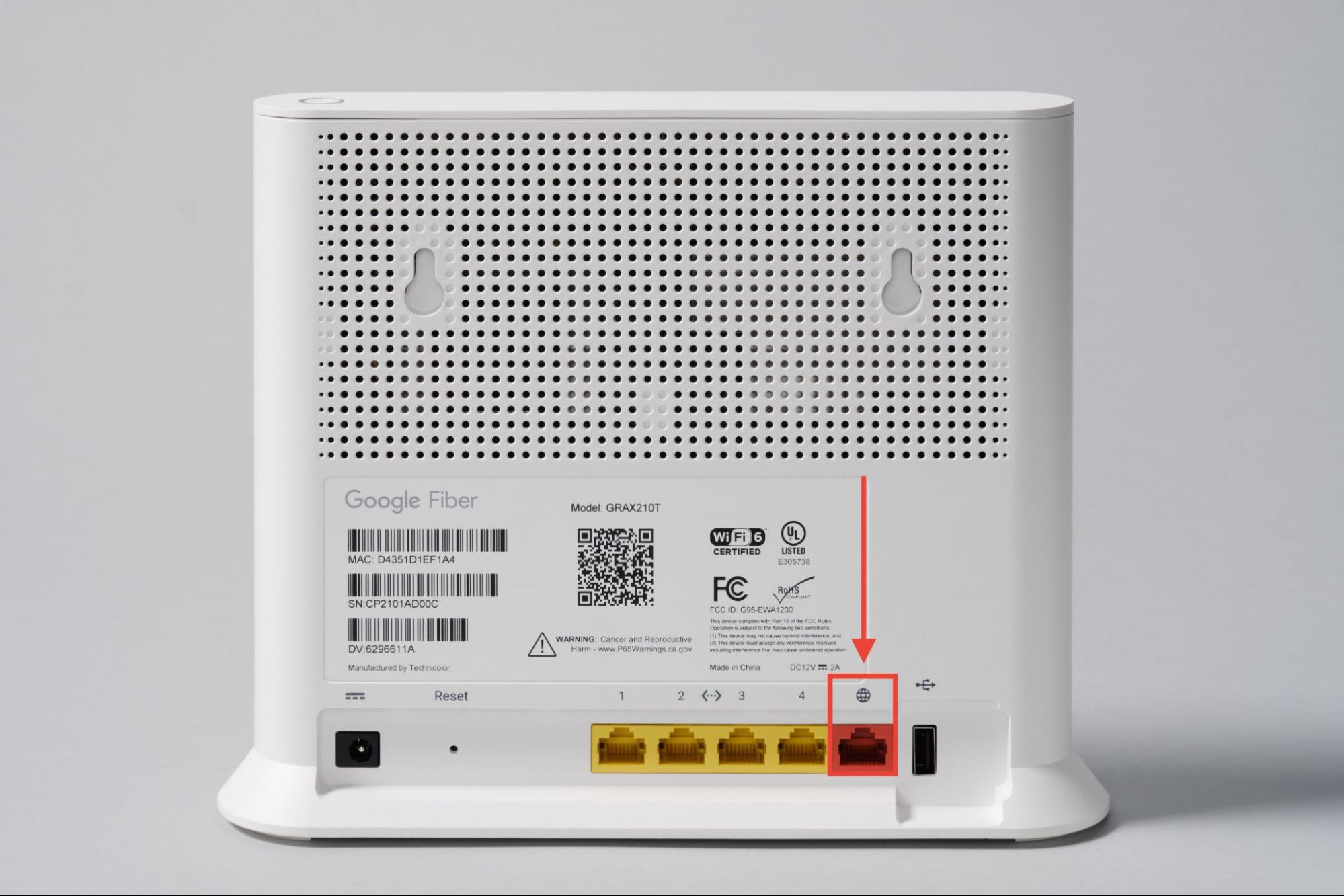
- Connect the Fiber Jack to your router’s silver WAN port (globe icon) with an Ethernet cable.
- Turn on your router.
- Set your Wi-Fi name and password in the GFiber App.
 Seeing a yellow Wi-Fi light? Finish setting up your network name and password in the GFiber App to get connected.
Total setup time: about 10–15 minutes.
What’s in Your Self-Install Kit
Open your self-install kit and confirm you have everything:
-
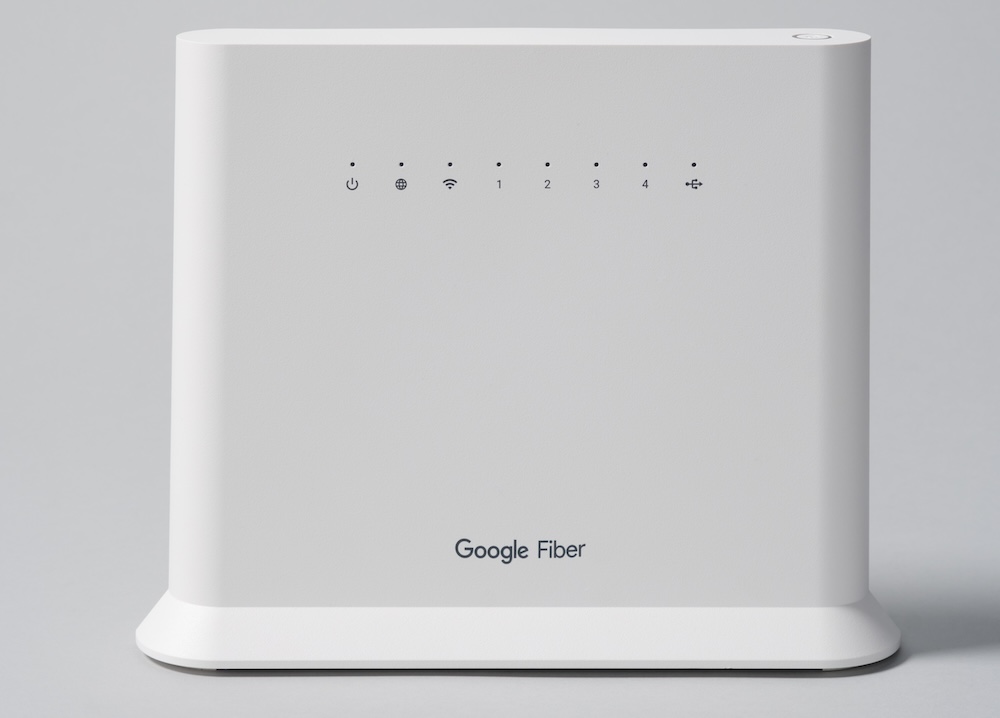
GFiber Wi-Fi 6 Router (Model GRAX210T)
-
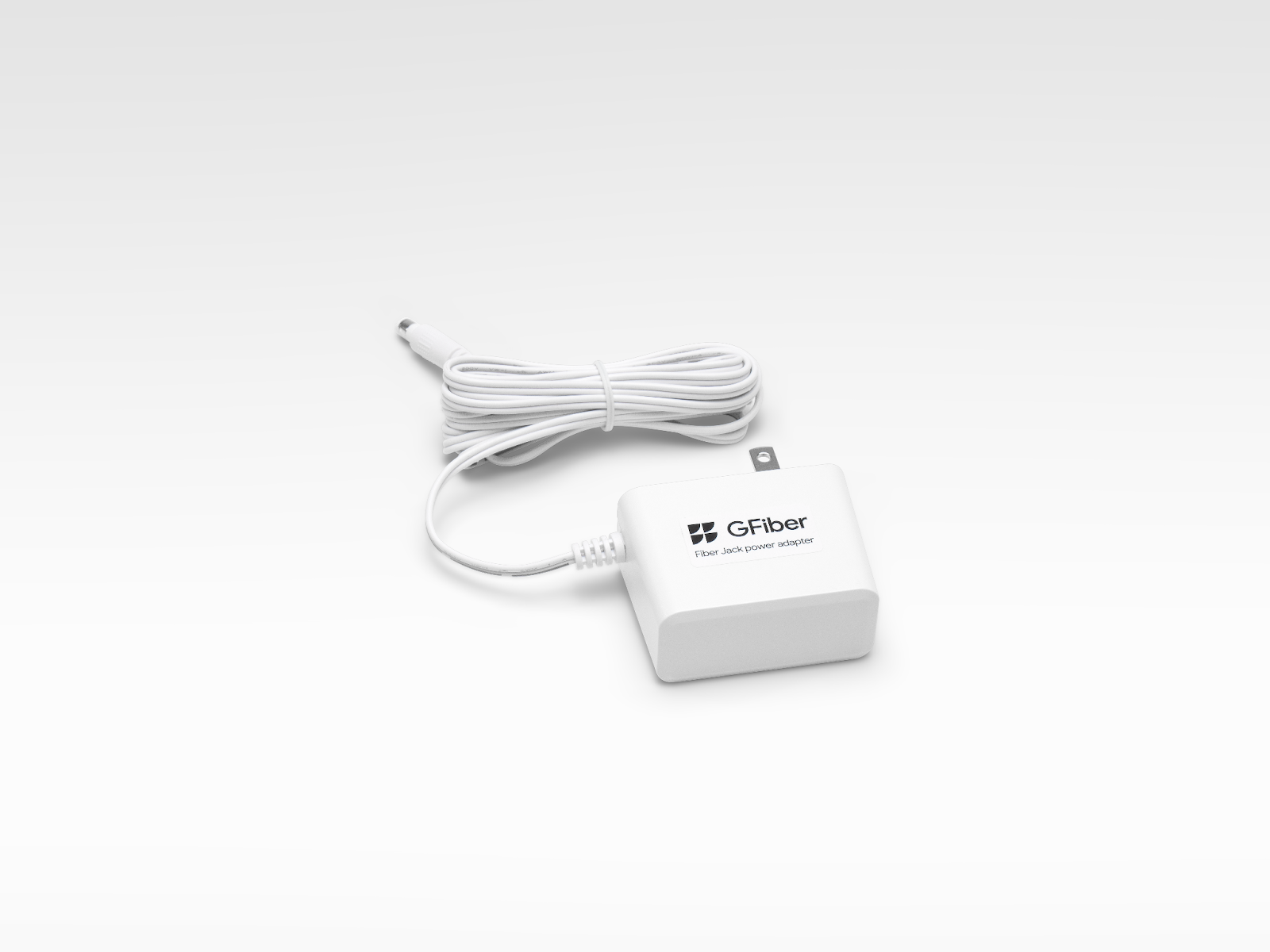
2 power adapters (one for the router, one for the Fiber Jack)
-
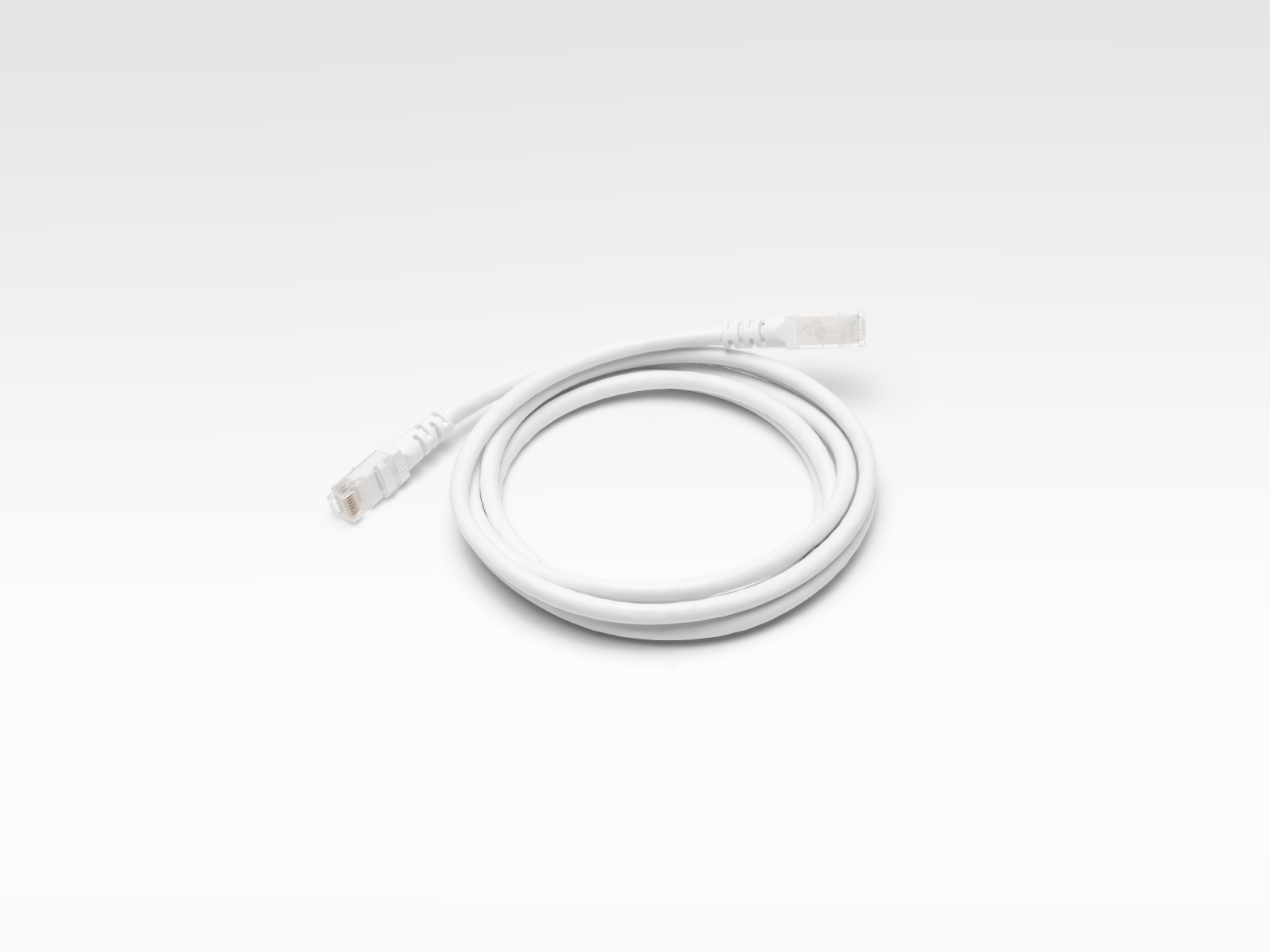
1 Ethernet cable
-
Mesh Extender(s) (optional)
Step 1: Find the Fiber Jack
Your Fiber Jack is the small white box that connects your home to the internet. A technician may have installed this during your original appointment, or it could have been left there by a previous homeowner or tenant. Look for it on a wall, usually where the fiber line first enters your house through your NIU.
Check these common spots:
- Mounted on a wall in a central area or utility closet.
- Hidden inside a plastic media panel in a bedroom closet or behind the front door.
- Connected to an old router with an Ethernet cable.
There are two Fiber Jack models:
- Single-light model (blue lights)
- Four-light model (green lights)
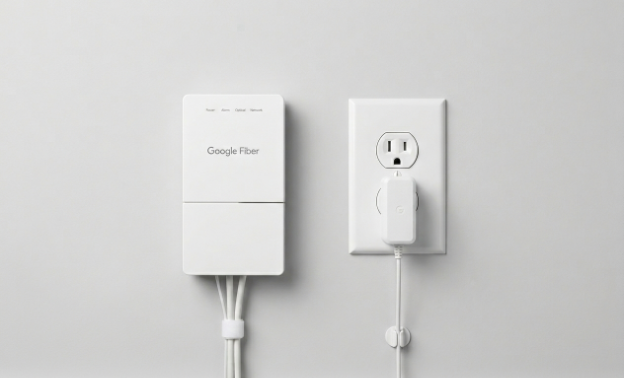
Prefer to watch a video? See how to find your Fiber Jack.
If you still can't locate it, contact us.
Step 2: Connect the Fiber Jack to Power
To connect your Fiber Jack to power, follow these steps:
-
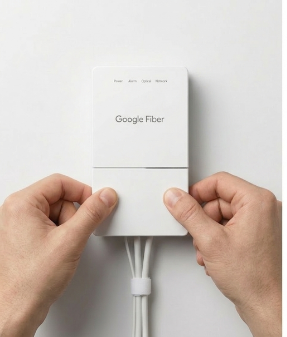
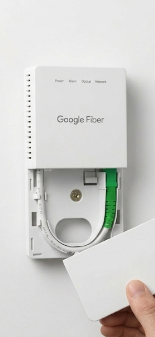
Remove the bottom cover of the Fiber Jack by placing your fingers in the side dents and gently pulling.
-
Check if the Fiber Jack is plugged in. If it is not, connect the power adapter from your self-install kit and plug it into a wall outlet.

-
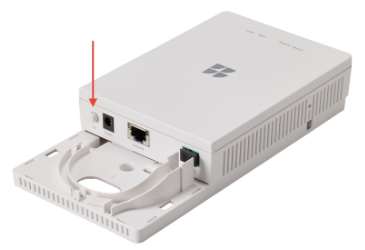
The Power light should start blinking. If it does not, press the Power button on the inside left side of the Fiber Jack.
-
Wait for the light to turn a solid color before moving on.
Having trouble connecting? See our Fiber Jack troubleshooting guide.
Step 3: Connect the Fiber Jack to Your Router
-
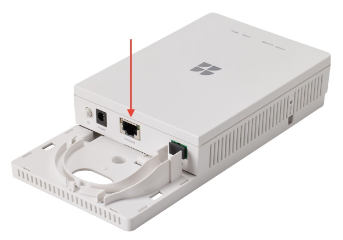
Plug one end of the Ethernet cable into the Ethernet port on your Fiber Jack.
-
Plug the other end into the red WAN port (globe icon) on your GFiber Wi-Fi 6 Router.
-
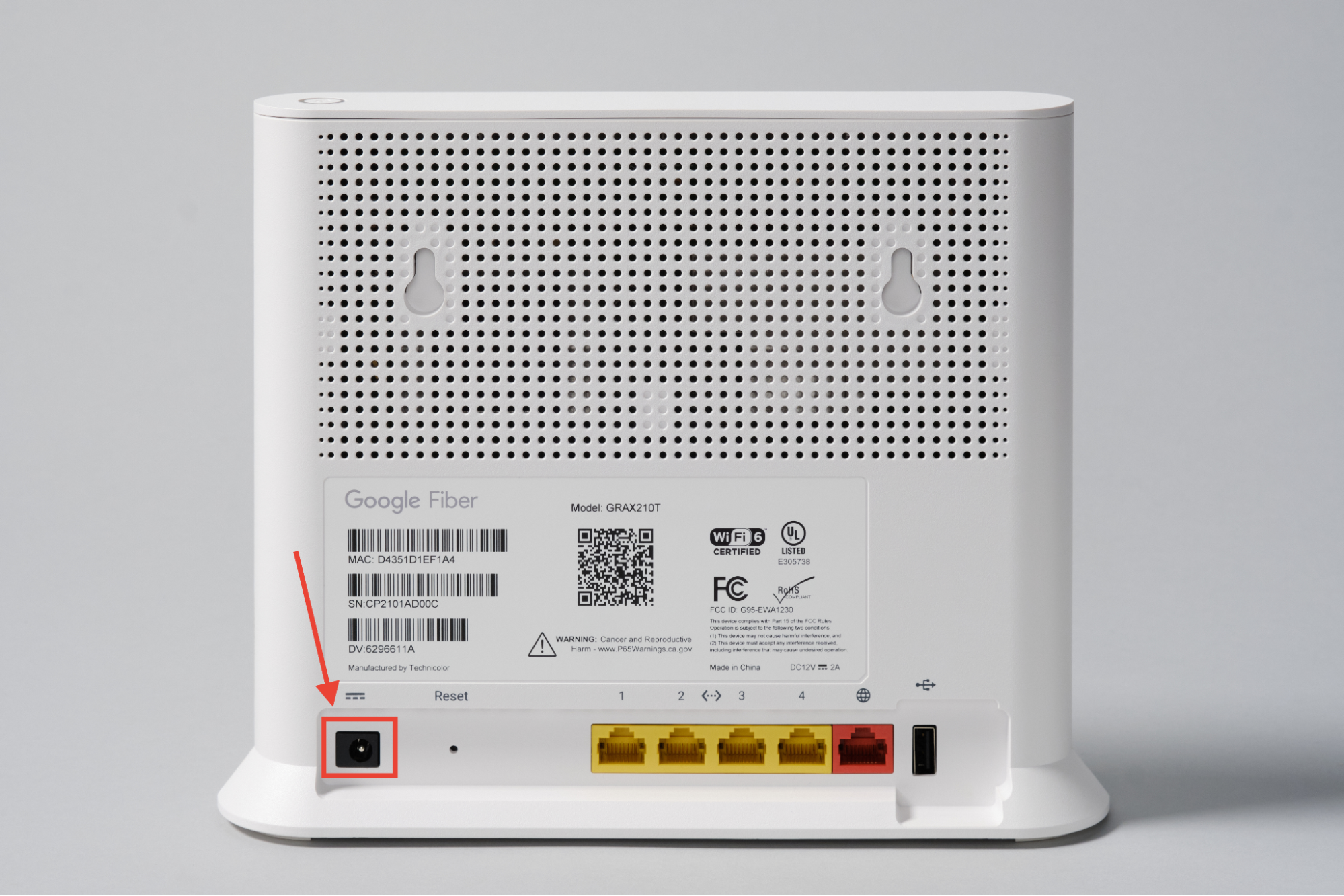
Connect the router’s power adapter to the router and plug it in to a wall outlet.
-
The router light may flash yellow or blue while connecting. Wait for it to change to solid blue before continuing.
-
Slide the bottom cover of the Fiber Jack back into place.
You can do this in the GFiber App or your online account.
Using the GFiber Mobile App
- Sign in to the GFiber App.
- Tap Network at the bottom.
- Tap Network settings.
- Tap Primary network settings.
- If the Primary network Wi-Fi is set to Off, switch it to On.
- Update your Network name.
- Set a primary network password.
- Tap Save.
Using the GFiber Online Account Portal
-
Sign in to your GFiber Account.
-
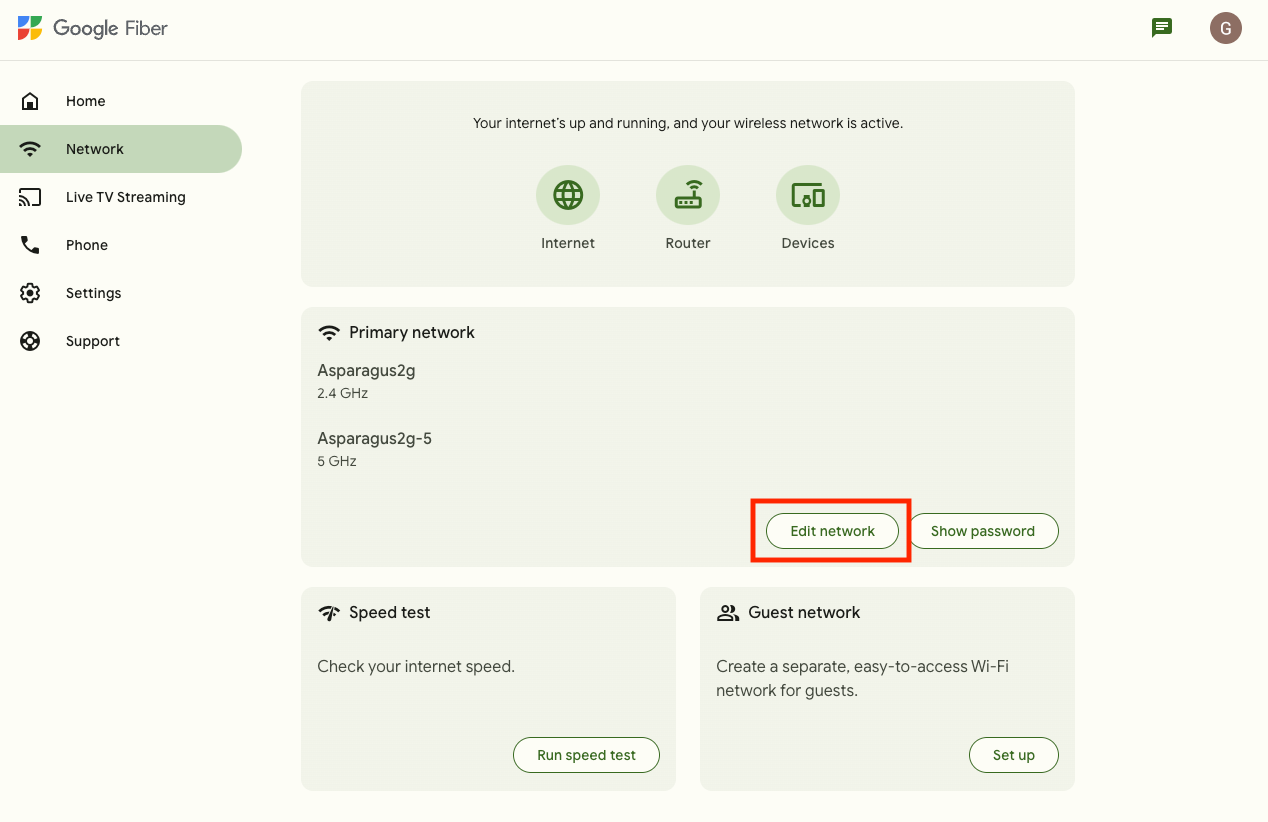
Select Network at the top-left corner.
-
Click the Edit network button.
-
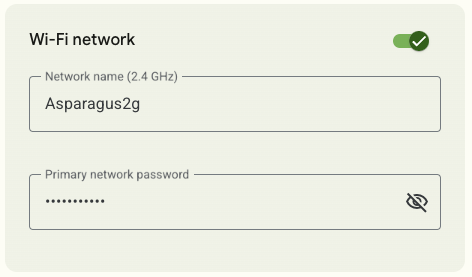
If the Wi-Fi network is set to Off, switch it to On.
-
Set a Network name.
- Set a Primary network password.
- Click Save.
A mesh extender helps your Wi-Fi reach every corner of your home.
- Start by setting up the extender close to your router — you can move it later.
- Follow the steps in our Mesh Extender setup guide.
- Once paired, move the extender about halfway between your router and the area where you need more coverage.
Router Light Status Guide
| Light | Symbol | Meaning | What to do |
|---|---|---|---|
| Solid blue |  Power Power  WAN/Internet WAN/Internet  Wi-Fi Wi-Fi | Connected | You’re all set! |
| No light | Power | No power | Unplug the adapter for 10 seconds, then plug it back in. Wait 5 minutes for the light to return. |
| Purple | Power WAN/Internet | Starting up / connecting | No action needed. It can take up to 5 minutes to turn solid blue. |
| Solid red | WAN/Internet | Searching for connection | Make sure the Ethernet cable is in the red WAN port (globe icon). Wait 5 minutes. |
| Blinking blue | WAN/Internet | Connecting to the network | Wait up to 5 minutes for the power, internet, and Wi-Fi LED lights to turn to solid blue. |
| Blinking red | WAN/Internet | Connection issue | Restart router and wait 5 minutes. |
| No light | Wi-Fi | Wi-Fi is off | Turn Wi-Fi on by signing in to your GFiber account. |
Need to restart your router? Unplug the power adapter for 10 seconds, then plug it back in. Wait up to 5 minutes for the blue light to return.
FAQs
Your kit typically arrives within 1-3 business days, depending on when the order was placed. We ship self-install kits Monday through Friday, with Saturday delivery available.
Orders placed after Friday at 7 a.m. ship the following Monday.Contact us right away and we'll make it right.
Check these common spots:
- Mounted on a wall in a central area or utility closet
- Hidden inside a plastic "media panel" in a bedroom closet or behind the front door
- Connected to an old router with an Ethernet cable
Still can't find it? Contact us.
- Make sure you’re using the correct Wi-Fi network name and password
- Connect the device to the router with an Ethernet cable
- Restart the device
If only one device is having trouble, you may need to contact that device manufacturer for support.
You can also follow our Wi-Fi troubleshooting guide.
Run a speed test to check your connection. Speeds can vary based on:
- Device age
- Distance from the router
- Interference from walls or other devices
For the best performance, use the 10G LAN port for a wired connection.
Compatible devices can reach wireless speeds up to 800 Mbps. For maximum performance, use the 10G LAN port on the back of the router for a wired connection.
How do the different Wi-Fi bands work?
- 2.4 GHz: Best range through walls, but slower speeds.
- 5 GHz: A solid balance of speed and range for most devices.
- 6 GHz: The fastest speeds with the least interference — best for nearby, high-demand devices.
Your router automatically connects devices to the best band.
Reset your router to restore factory defaults:
- Make sure your router is plugged in and powered on.
- Find the Reset button on the back.
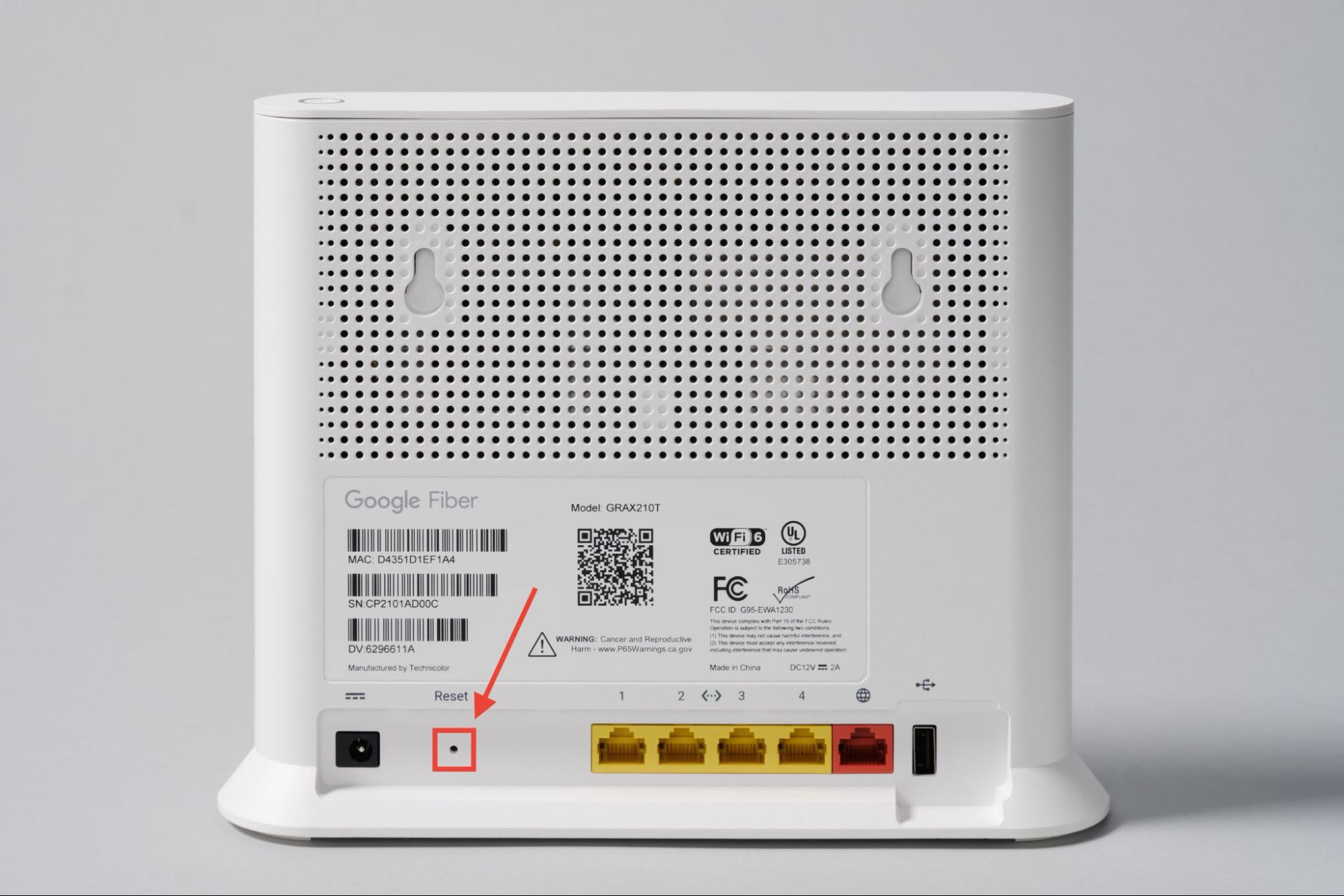
- Use a paperclip or pen to press and hold for at least 10 seconds.
- Release when the light on the front of the router starts blinking red.
- The router will restart automatically.
- Wait for the light to turn solid blue.