Set Up Nest Wifi Pro With gFiber
To set up your Nest Wifi Pro with gFiber, connect an Ethernet cable from your powered Fiber Jack to the WAN port (globe icon) on your Nest Wifi Pro, plug in the router power adapter, and open the Google Home app to configure your Wi-Fi network name and password.

Review self-install kit contents
Open your kit and ensure all package contents are present before beginning installation:
-
1 Nest Wifi Pro router

-
1 Nest Wifi Pro power adapter
-
1 Fiber Jack power adapter
-
1 Ethernet cable
Locate and power on Fiber Jack
The Fiber Jack connects your home directly to the gFiber network. It is typically mounted on an interior wall where the fiber line enters your home, inside an enclosed media cabinet, or in a utility space.
-
Locate your Fiber Jack on the wall or inside your media panel.
-
Remove the bottom faceplate cover by placing your fingers in the side indentations and pulling gently outward.
-
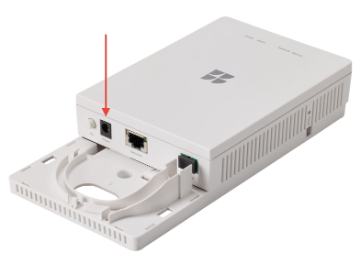
Plug the included Fiber Jack power adapter into the power port, then plug the other end into an electrical wall outlet.
-
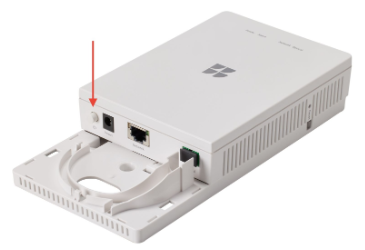
Check the power light indicator. If the light does not turn on, press the power button located on the inner left side of the device.
-
Wait for the indicator light to illuminate as a solid color (solid blue on single-light models, or solid green on four-light models).

Connect router to Fiber Jack
Place your Nest Wifi Pro in an elevated, open area — such as an open shelf or media stand — away from large metal objects, thick concrete walls, or enclosed cabinets to preserve wireless range.
-
In your workspace, disconnect and power down any older third-party routers previously connected to the Fiber Jack.
-
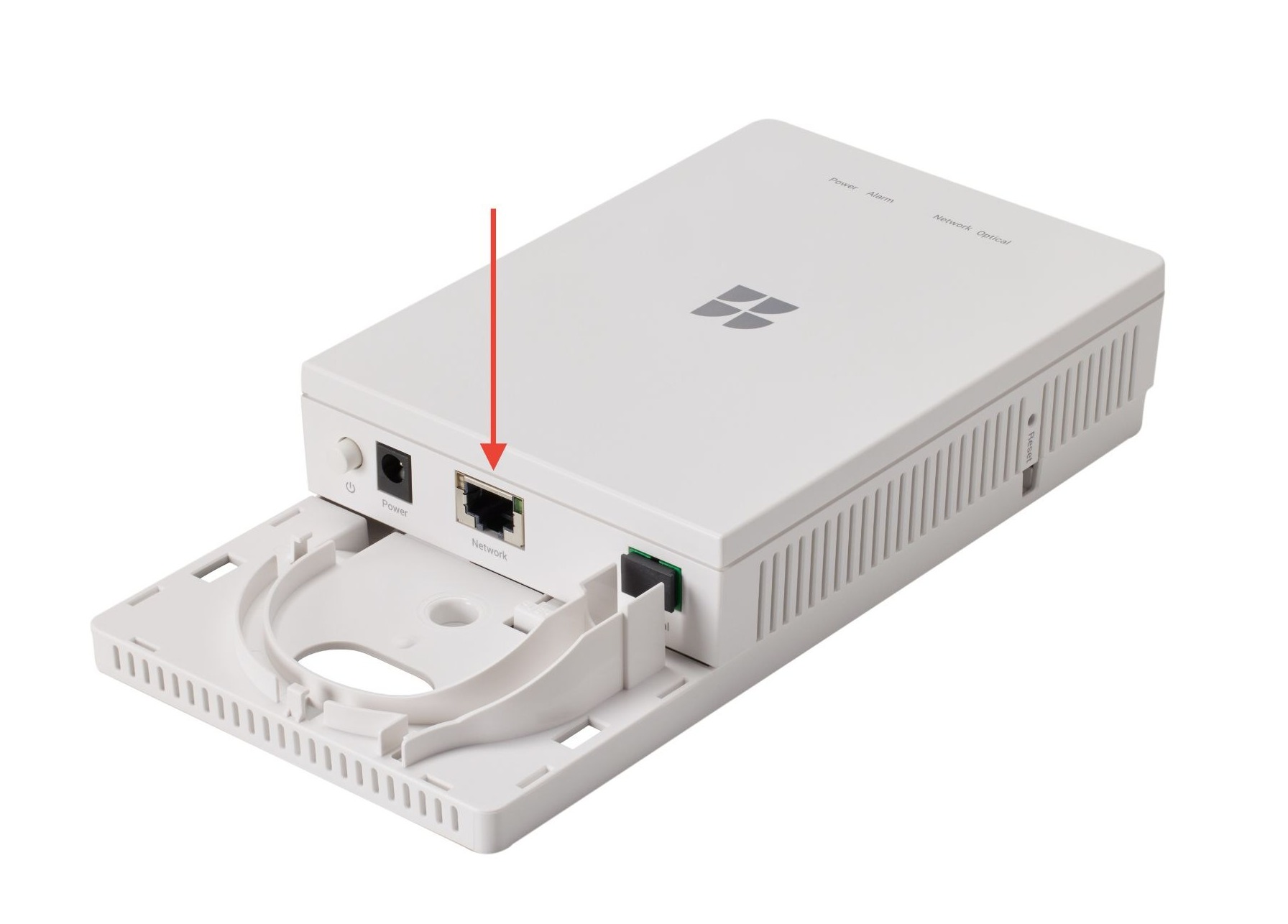
Plug one end of the Ethernet cable into the Ethernet port on your Fiber Jack.
-
Plug the opposite end of the Ethernet cable into the WAN port (marked with a globe icon) on your Nest Wifi Pro.
-
Connect the Nest Wifi Pro power adapter to the power port on the base of the device, then plug it into a wall outlet.
-
Slide the protective bottom cover back onto your Fiber Jack until it clicks into place.
-
Wait for the status light on your Nest Wifi Pro to slowly pulse blue, indicating it is ready for mobile device pairing.
Set up Wi-Fi in Google Home app
Ensure Bluetooth is enabled on your mobile phone before starting setup.
-
Download the Google Home App from the Google Play Store or Apple App Store.
- Open the Google Home ap and sign in.
-
In the Home tab, tap Add (+), tap Device, and select Scan QR Code.
-
Select your home profile, then tap Next.
-
Select Nest Wifi Pro from the available accessory list.
-
Scan the QR code located on the base of your Nest Wifi Pro router using your phone camera (hold your device approximately 5 inches away). If the camera will not scan, tap Continue without scanning and enter the 8-character setup key printed on the base label.
-
Select an assigned room for your router, or create a custom room name.
-
In the text fields, enter your desired network name (SSID) and network password. Using your previous network credentials will allow your personal devices to reconnect automatically.
-
Tap Save.
The Google Home app will display a confirmation screen stating your network is ready, and the LED status light on the router will transition to solid white.
Add optional mesh points
Additional Nest Wifi Pro units can be placed throughout your home to eliminate dead zones and create an expanded Wi-Fi 6E mesh network.
-
Place your secondary Nest Wifi Pro unit within 2 rooms (approximately 30 feet) of the primary router.
-
Connect the power adapter to the unit and plug it into an electrical wall outlet.
-
On your mobile phone, open the Google Home app.
-
In the Home tab, tap Add (+), tap Device, and select Scan QR Code.
-
Select Add as point and tap Next.
-
Scan the QR code on the bottom of the device, or enter the printed setup key manually.
-
Follow the on-screen prompts to select a room location.
-
When prompted to test mesh connectivity, tap Run Mesh Test. The app reports "Great connection" or "Good connection" across all mesh points, and the status light turns solid white.
Check status lights
Use this reference table to evaluate device states and resolve connectivity issues:
| Status Light | Device State | Action Required |
| Solid white | Connected and online | None. Your network is active and functioning normally. |
| Slow pulsing blue | Ready for setup | Open the Google Home app to complete device configuration. |
| Fast pulsing blue | Pairing with device | Wait for the pairing sequence to complete automatically. |
| Fast pulsing white | Starting up or applying software update | Wait 1 to 2 minutes for the boot or update process to finish. |
| Slow blinking yellow | Network connection error | Verify the Ethernet cable is securely connected to both the Fiber Jack and the WAN port. |
| Fast blinking yellow | Setup configuration error | Wait for the light to return to pulsing blue, then retry pairing in the app. |
| Solid yellow | Factory reset initiated | Allow up to 10 minutes for the reset cycle to clear configuration data. |
| Fast blinking red | Critical device error | Disconnect power for 30 seconds, then reconnect. If the light remains red, contact customer support. |
| No light | Device lacks electrical power | Inspect power cable connections and test the wall outlet with another appliance. |
Frequently asked questions
No. Nest Wifi Pro requires the Google Home app on an Android or iOS device for network configuration and mesh management. The gFiber App is reserved for customers using custom gFiber Wi-Fi 6, Wi-Fi 6E, or Wi-Fi 7 routers.
Inspect the front LED lights on your Fiber Jack. On single-light models, the LED glows solid blue when online. On four-light models, the Power, Optical, and Ethernet lights glow solid green. If the optical light is unlit or blinking red, your fiber connection is offline.
A slow blinking yellow light indicates your router cannot establish an internet connection. Verify that the Ethernet cable is firmly seated in both the Fiber Jack port and the router WAN port (globe icon), and confirm that your Fiber Jack is connected to power.