Set Up Your gFiber Wi-Fi 7 Mesh Extender
Follow these high-level steps to connect your extender:
-
Place the extender within 3-6 feet of your router and plug it into power.
-
Press the WPS button on your gFiber Wi-Fi 7 Router, then press the WPS button on your extender until both lights blink white.
-
Wait for the status light on the extender to turn solid green to confirm pairing.
-
Move the extender to its permanent spot and plug it back into power.
Setup takes 5–10 minutes, and the extender light will display solid green when connected. For step-by-step visual guidance, watch our mesh extender self-install video.
Review your self-install kit
If your gFiber Wi-Fi 7 Mesh Extender arrived in a standalone self-install kit, verify that your box includes the following items before starting:
-
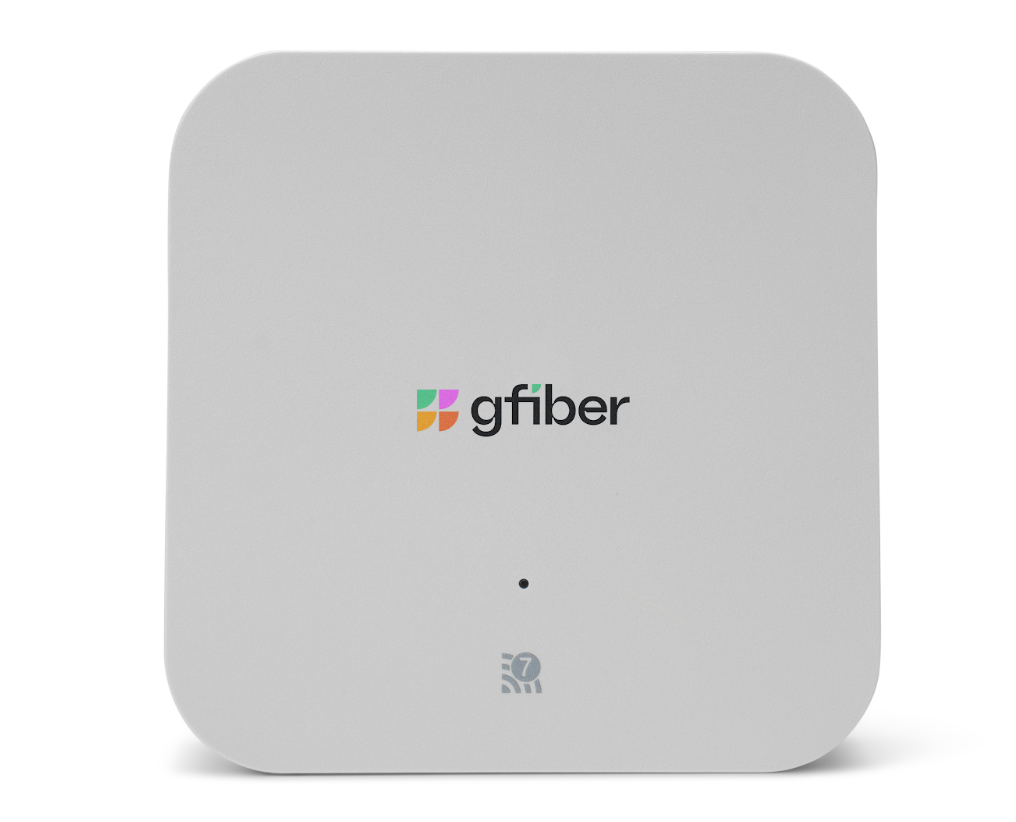
gFiber Wi-Fi 7 Mesh Extender
Model GEBE320C Model GEBE320S 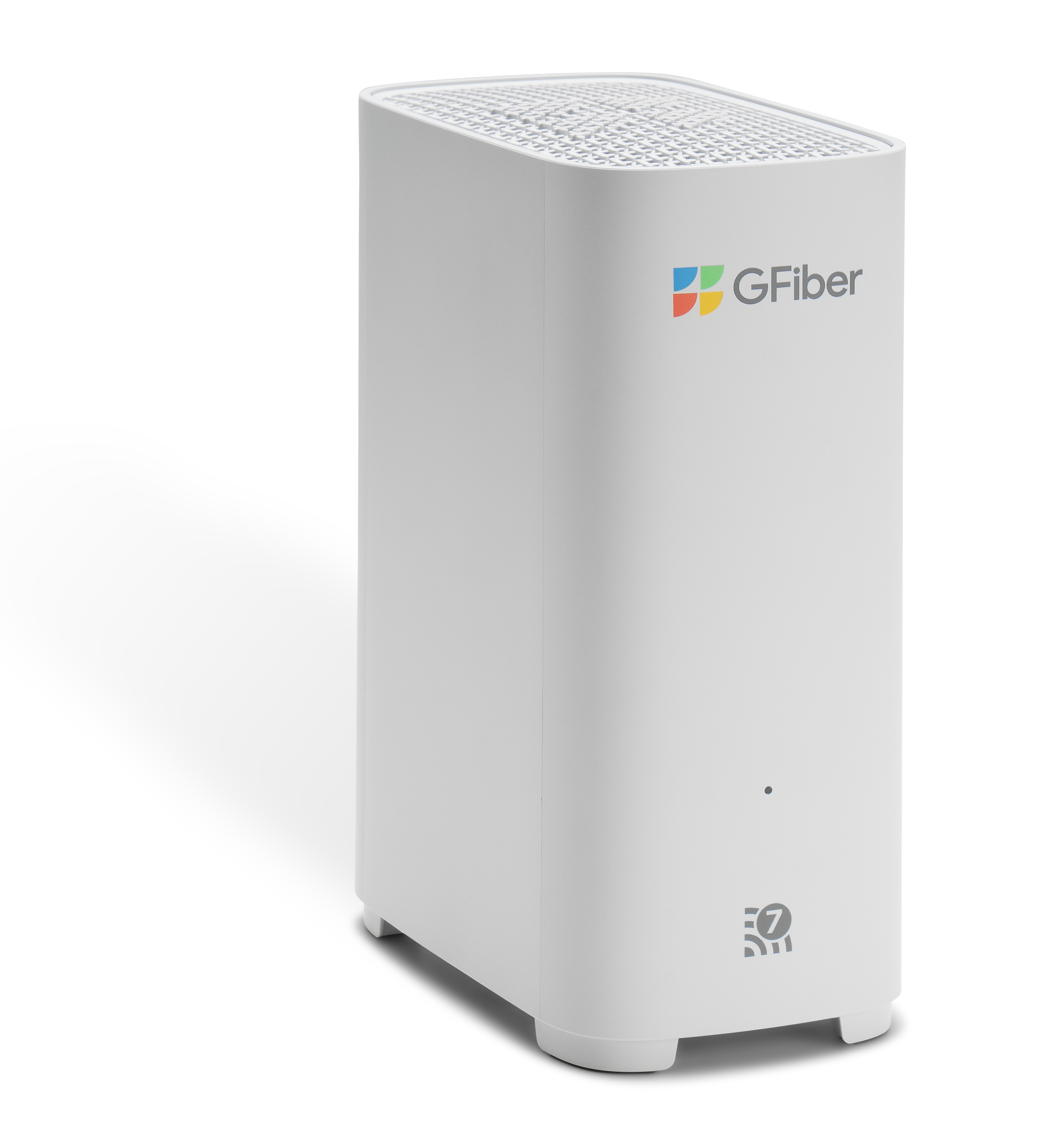
-
1 power adapter cord
-
1 Ethernet cable

Turn on your mesh extender
-
Select a power outlet located 3 to 6 feet from your gFiber Wi-Fi 7 Router.
-
Plug the power adapter into the extender and the wall outlet.
-
Wait up to 4 minutes for the LED status light to turn solid white, confirming the extender is ready to pair.
Pair your mesh extender with your router
You can pair your gFiber Wi-Fi 7 Mesh Extender wirelessly using Wi-Fi Protected Setup (WPS) or with a wired Ethernet connection.
Pair wirelessly with WPS
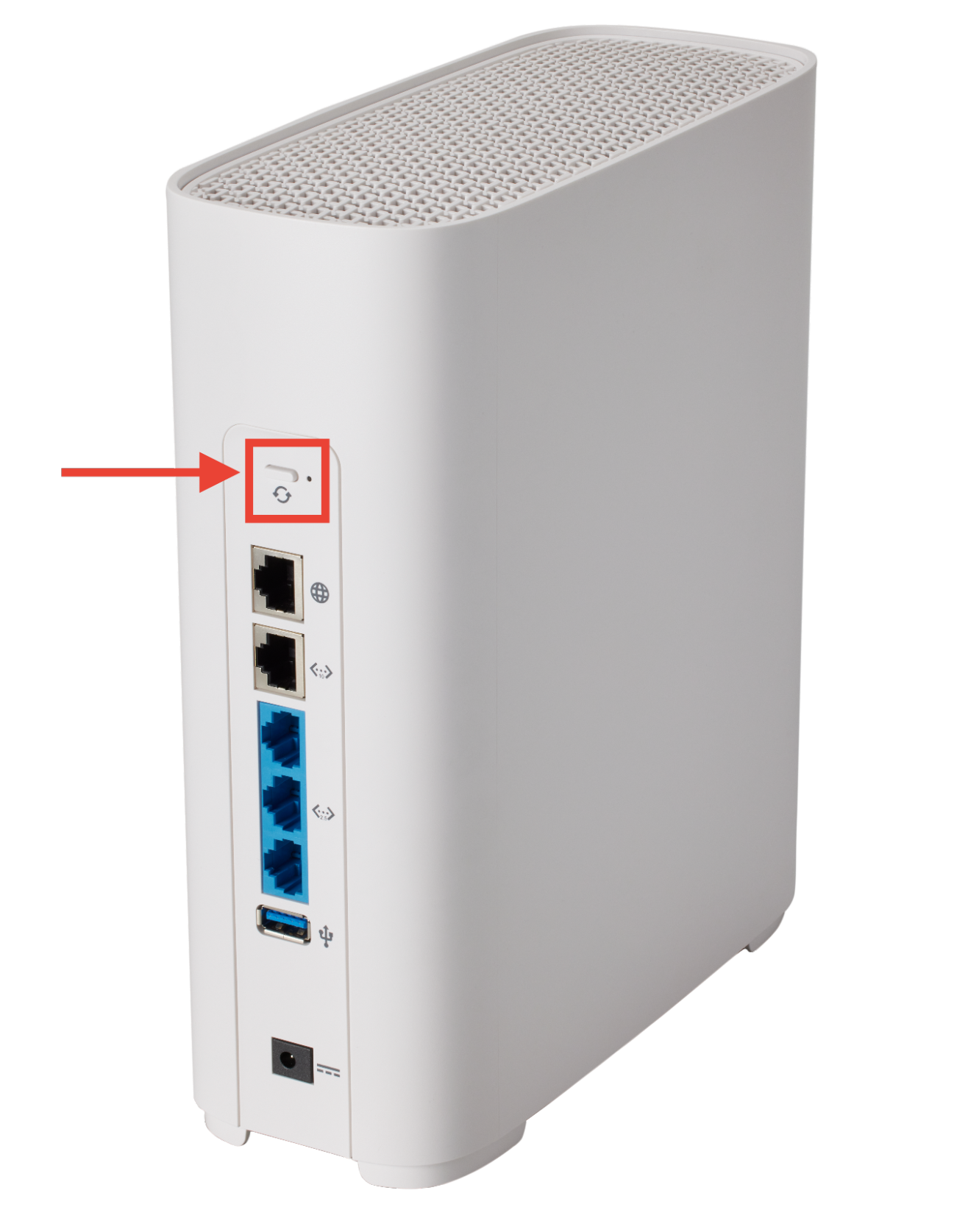
- Press and release the WPS button on the back of your router.
-
Within a few seconds, press the WPS button on the back of your extender.
-
The LED will blink white while pairing. When it turns solid green, you’re all set. This may take up to four minutes.
Pair with an Ethernet cable
- Connect one end of the included Ethernet cable to an open LAN port on your gFiber Wi-Fi 7 Router.
- Connect the other end of the Ethernet cable to the 10G or 2.5G LAN port on the back of your mesh extender.
- The LED will blink white while pairing. Once it turns solid green, pairing is complete. This may take up to four minutes.
Move your mesh extender to its permanent spot
-
Once paired (solid green light), unplug the extender and move the extender to its permanent location, ideally halfway between your router and the area where you need stronger Wi-Fi coverage, with a line of sight.
-
Plug the mesh extender into a new wall outlet and wait for the LED to turn solid green again. This may take up to four minutes.
-
Run a speed test in the gFiber App to verify your extended Wi-Fi coverage.

Check mesh extender status lights
Use the table below to diagnose the LED status lights on your gFiber Wi-Fi 7 Mesh Extender (Model GEBE320C or GEBE320S).
| LED color | What it means | What to do |
| 🟢 Solid green | Connected with strong signal | You are all set. No action needed. |
| 🟢 Blinking green | Powering on or booting up | Wait 1 to 2 minutes for the light to turn solid green. |
| ⚪ Solid white | Ready to pair | Start the WPS or Ethernet pairing process. |
| ⚪ Blinking white | Pairing in progress | Keep the extender within 3-6 feet of the router until the light turns solid green. |
| 🔴 Solid red | No connection | Move the extender closer to your router and press the WPS buttons to pair again. |
Manage and rename your mesh extender
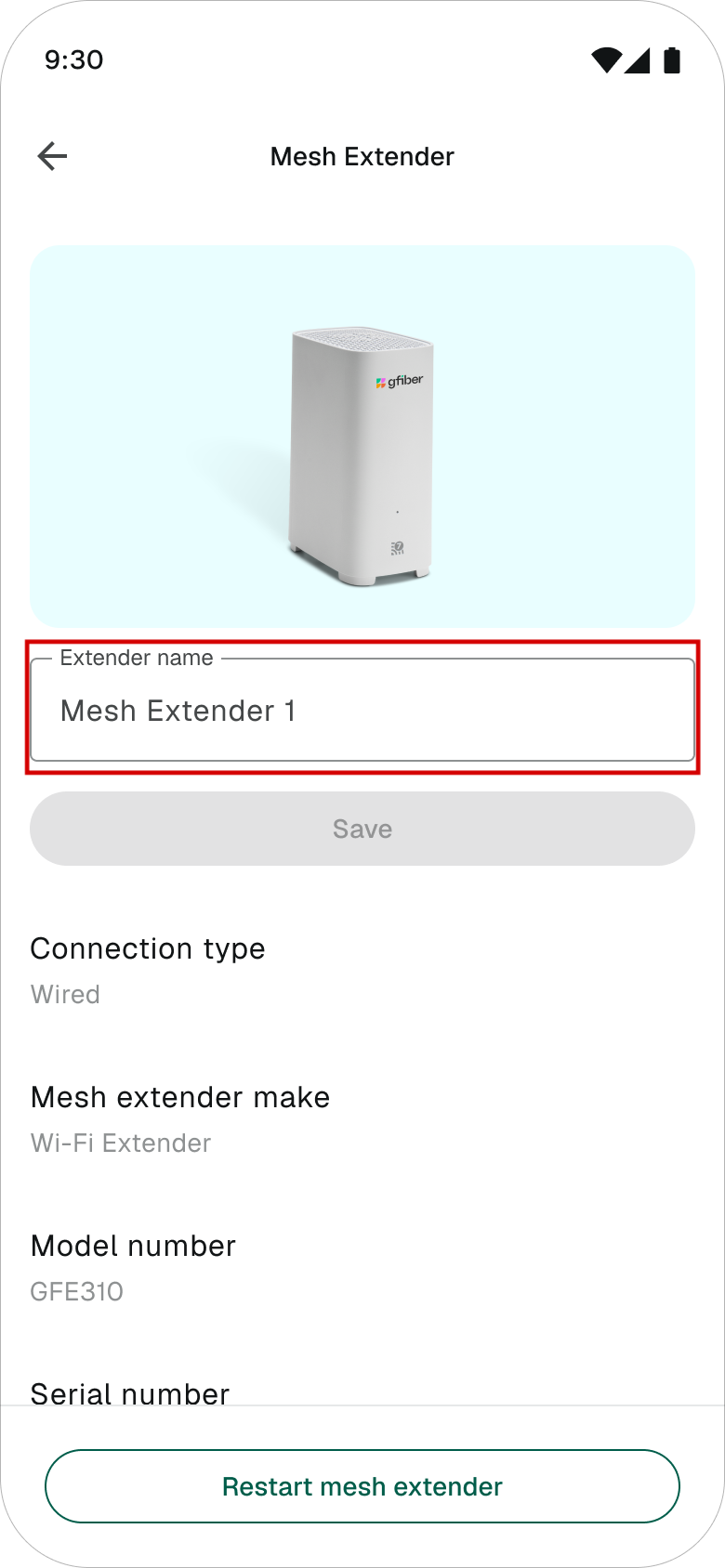
You can customize your extender's name (such as "Office" or "Living Room"), check signal quality, or reboot the hardware remotely in the gFiber App.
- Open the gFiber App on your mobile device and sign in.
- At the bottom of the screen, tap the Network tab.
- Near the top of the Network menu, tap Manage extenders.
- Select the mesh extender you want to update, then tap See details.
- Tap the Extender name field, type your new label, and tap Save.
Frequently asked questions
We recommend using no more than 2 mesh extenders on a home network. Adding more than 2 extenders can create wireless interference and reduce your Wi-Fi speeds. You typically only need an extender if your home is larger than 2,000 square feet or has rooms with weak signal. Use the Network Health tool in the gFiber App to test your coverage.
Yes, MLO is automatically enabled on the backhaul link between your gFiber Wi-Fi 7 Router and gFiber Wi-Fi 7 Mesh Extender, combining 5 GHz and 6 GHz bands for higher throughput and lower latency. Any wired or wireless device connected to the extender benefits from this dual-band backhaul, even if the client device does not natively support MLO yet.
Connecting your gFiber Wi-Fi 7 Router and mesh extender with an Ethernet cable creates a wired backhaul, which delivers the fastest and most reliable speeds to distant rooms. If running Ethernet is not practical, wireless pairing uses Multi-Link Operation (MLO) across the 5 GHz and 6 GHz bands to maintain a high-speed wireless connection.
The gFiber Wi-Fi 7 Mesh Extender (Model GEBE320C) measures 7.5" H x 3.25" W x 5.5" D (with a 3" H x 1.25" W x 2.5" D power adapter) and features a quad-core A53 1.5 GHz CPU, 1 GB DDR4 RAM, and 256 MB Flash memory. It supports EasyMesh R4, dual-band MLO (5 GHz and 6 GHz), tri-band radios (2x2 on 2.4 GHz, 2x2 on 5 GHz, and 4x4 on 6 GHz), 1 10G LAN port, and 1 2.5G LAN port.
Repeat the same pairing steps for your second extender, placing it within 3-6 feet of your router during initial setup. When placing multiple extenders permanently, arrange them in a sequence extending outward from your router (Router to Extender 1, and Router to Extender 2 in another direction) rather than placing them right next to each other.
Extenders are available based on your specific service and equipment — not as a standard retail purchase. Here’s how to check:
- Your gFiber account: Sign in online to see available equipment add-ons.
- The gFiber App: Check if your current service supports ordering additional equipment.
- Contact us: Reach out via chat or phone and we can help you figure out what you're eligible for.
In many cases, extenders are included with your service at no extra cost.
To reset an unresponsive extender, insert an unfolded paper clip into the reset pinhole on the bottom of the unit and press and hold the button for at least 10 seconds. Release the button and wait for the extender to reboot to a solid white LED, then pair it again with your gFiber Wi-Fi 7 Router.