Set Up Your Google Wifi
Get ready to set up your internet. Watch this quick Google Wifi self-install video or follow the step-by-step instructions below to set up internet using your self-install kit.

Self-Install Kit instructions
Our installation specialist has already installed a Fiber Jack on your wall. That's where the internet signal enters your home. In this step, you'll locate the FIber Jack and plug it into power.
- Usually, you'll locate the Fiber Jack installed on a wall in your living room. If it isn't there, you might find it in some out-of-the-way spot like a closet, behind a couch, or in the garage. If you need more information on locating your Fiber Jack, visit About Fiber Jacks.
- Next, connect the Fiber Jack power adapter from the Fiber Jack to the adjacent wall outlet. Your Fiber Jack LED light will flash blue or green until ready. When ready, your Fiber Jack LED light will turn a solid color. The light on the Fiber Jack will flash for up to 15 minutes before turning solid.
- Take your Google Wifi point out of the box and flip it over.
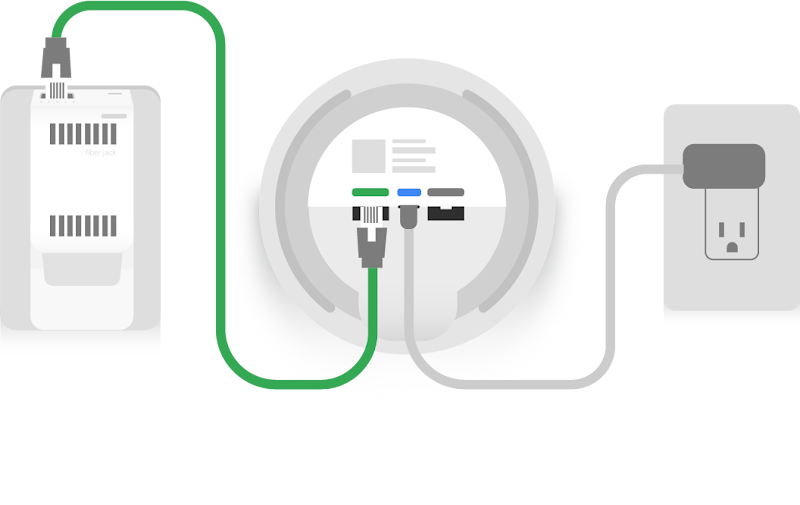
- Connect the power adapter cord from your Google Wifi point to an outlet located close to your Fiber Jack.
- Connect the ethernet cable from the green port on your Google Wifi point to the ethernet port on your Fiber Jack.
- When connected properly, your Google Wifi point will slowly pulse blue to indicate it’s powered on and ready for setup. Google Wifi points work best when placed in an open space like on a shelf or TV stand.
- If an AC adapter is connected, unplug the power source from the wall.
- If it's easier to unplug the power cable from the Fiber Jack itself, carefully remove the power cable from the unit.
- Unplug the ethernet cord from the device to which the Fiber Jack is connected (such as a Google Wifi point), wait 30 seconds, then plug it back in.
- If it's easier to unplug the ethernet cord from the Fiber Jack itself, carefully remove the ethernet cord from the unit, wait 30 seconds, then plug it back in.
- Reconnect the AC Adapter if it was disconnected.
- Wait three minutes for the Fiber Jack to fully reboot and reconnect to the network.
You’ll need the Google Home app to set up your in-home wireless network and manage your devices.
- Download the Google Home app for free on Google Play Store or the Apple App Store.
- Open the app and follow the on-screen instructions to set up your network.
- You‘ll be prompted to set up a Home and sign into your account.
- When prompted by the app, point your phone’s camera at the QR code and follow the on-screen instructions.
What should I do if my internet speed is slow or is interrupted?
- If after you've created your Wi-Fi network and are having issues with slow speeds or connection, you can split your network bands which allows you to connect to different frequencies and reduce interference with other devices while improving your connection.
What if I can't locate my Fiber Jack?
- Watch this video to learn more about how to look for your Fiber Jack. The Fiber Jack is normally in the living room on the same wall near where your TV is located. In homes where your Fiber Jack is installed someplace other than your main living space, it may be in a closet or media panel, behind a couch, in the garage, or in another out-of-the-way place. Go here to learn more about your Fiber Jack.
What if my Fiber Jack is damaged?
- Do not try to open, modify or repair your Fiber Jack. This could cause electric shock or injury to you.
What do the blinking lights on my GFiber devices mean?
- The LEDs on the front of the GFiber device indicates its status. If you're having trouble with your device, you can use the detailed information to diagnose the issue based on how the LEDs look.
- If you just placed your order for your self-install kit to be shipped, it should arrive within 1 to 3 business days. We'll email you a tracking number once it ships.
- If you're still having trouble with your network, you can use our internet troubleshooter or contact GFiber customer support to help resolve your issue.
- Have devices that you’ve already set up using the Google Wifi app? Go here to learn how you can migrate those devices to start using the Google Home app instead.
- If you've already self-installed GFiber internet at your current address and you're moving to another location where it’s available, you can take your existing equipment to your new address and install it there.
Google Wifi is a new type of home Wi-Fi system that provides seamless coverage throughout your home. Google Wifi uses multiple Wifi points in different rooms for fast Wi-Fi in every corner of your home.
On top of great coverage, your home utilizes our Network Assist feature. Network Assist actively manages and optimizes your Wi-Fi network behind the scenes so you don’t have to. However, you can still edit numerous Wi-Fi network settings, such as WAN settings, how to factory reset, device names, Wifi points, email notifications, and much more.
For complete information on managing your Wi-Fi network settings, refer to Google Wifi Help.
You can give your Wi-Fi network a name that is different from the setup name found on the bottom of your Wifi point. Network names must conform to the following guidelines:
- Between 1 and 31 characters
- No spaces at the beginning or end
You can also customize your Wi-Fi network password. Passwords must conform to the following guidelines:
- A combination of letters and numbers
- Between 8 and 63 characters
- No spaces at the beginning or end
- No special characters
The Google Home app’s settings allows you to easily change your network name and/or password. Refer to Change Wi-Fi network name for the simple instructions.