GFiber App Overview

The GFiber App makes it easy to manage your internet service and home network right from your phone. Use it to check your connection, adjust Wi-Fi settings, manage your account, and get help whenever you need it.
What You’ll Need Before You Start
Before using the GFiber App, make sure you have:
- An active GFiber internet account
- The email and password associated with your GFiber account
- A mobile device with the GFiber App installed
- A connection to your home network (recommended for setup)
Once you’re signed in, the app will automatically detect your GFiber service and available network features.
Download the GFiber App
To get started, download the GFiber App for your mobile device:
- Android: Download from the Google Play Store.
- iOS: Download from the App Store.
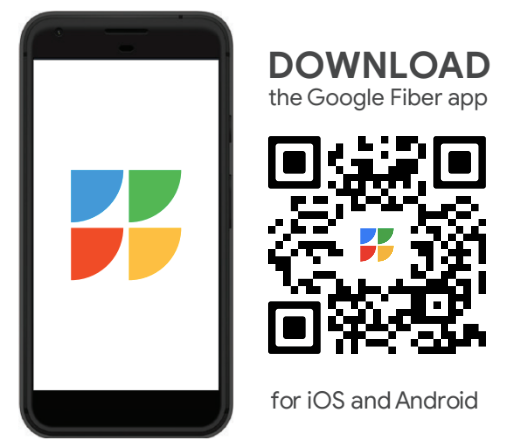
You can also scan the QR code below with your phone's camera to go directly to the download page.
Sign In to the GFiber App
- Open the GFiber App on your mobile device.
- Enter the email and password associated with your GFiber account.
- Tap Sign in.
Once you’re signed in, you can manage your network, run speed tests, update Wi-Fi settings, and access your account information.
If you have trouble signing in, read our complete guide to sign in to your GFiber account.
GFiber App Features
With the GFiber App, you can:
- Check your network speed: Run a speed test to see how fast your connection is performing.
- Check for outages: Quickly see if there is a known service issue in your area. Read our guide to check for network outages.
- Monitor Network Health: Check whether your network is online and identify potential issues.
- Manage Wi-Fi settings: Change your Wi-Fi name or password to keep your network secure.
- Create a guest network: Set up a separate Wi-Fi network for visitors so you can keep your main network private.
- Organize devices: Rename devices, create device groups, or pause/block devices connected to your network.
- Update advanced settings: Configure advanced network settings like DNS, port forwarding, UPnP, DHCP, and WPA security.
- Manage your account: View billing information, manage payments, update your GFiber PIN, and more.
- Get support: Schedule or manage service appointments, or contact our team by chat, email, or phone.